
Best VLC Media Player for TV Box 2025 – Guide & Tricks
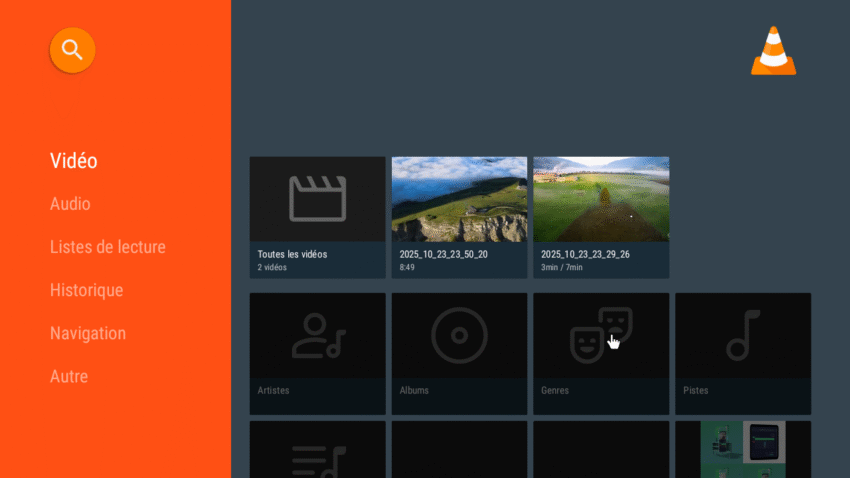
VLC is the most versatile open-source media player — perfect for Android TV boxes. This guide covers installation, remote & codec settings, best playback tweaks, subtitles, streaming from NAS/Plex, and troubleshooting tips for 2025.

Why choose VLC for your TV Box?
Universal Codec Support
Play almost any video/audio format without extra codec packs (MKV, H.265/HEVC, VP9, AAC, FLAC).
Network & Streaming
Stream from UPnP/DLNA servers, network shares (SMB), FTP, or directly open network streams (HLS, RTMP).
Subtitle & Audio Tools
External subtitle support, subtitle sync, multiple audio tracks, audio delay and equalizer tools.
Lightweight & Stable
Optimized for low-power TV boxes — supports hardware acceleration on many SoCs (via settings).
Screenshots & quick actions


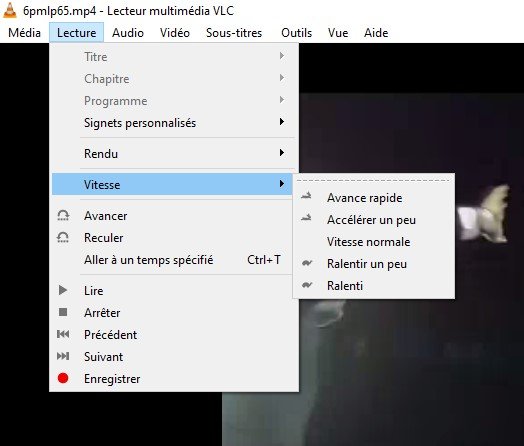
Playback & Controls
Use hardware acceleration, crop, aspect and deinterlace options for best quality.
 More information

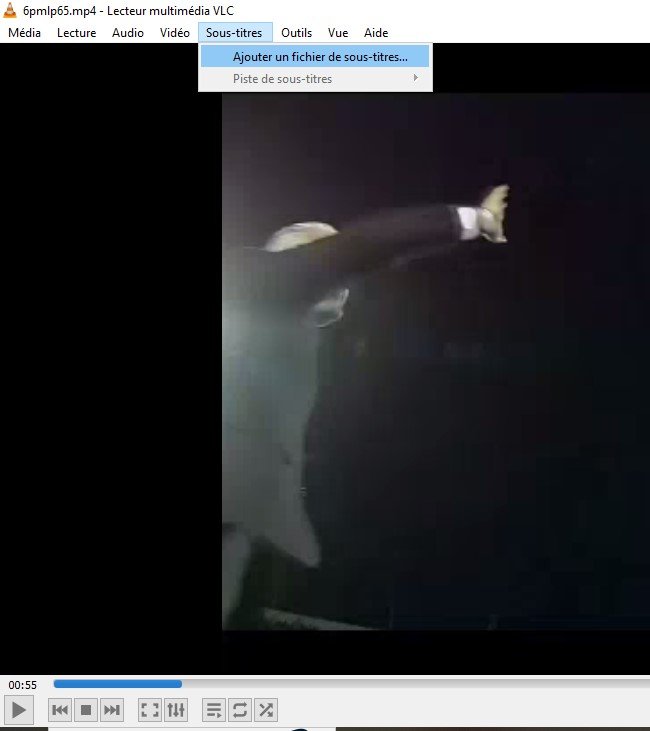
Subtitle Tools
Load external SRT, search online subtitle services or adjust timing on the fly.
 More information

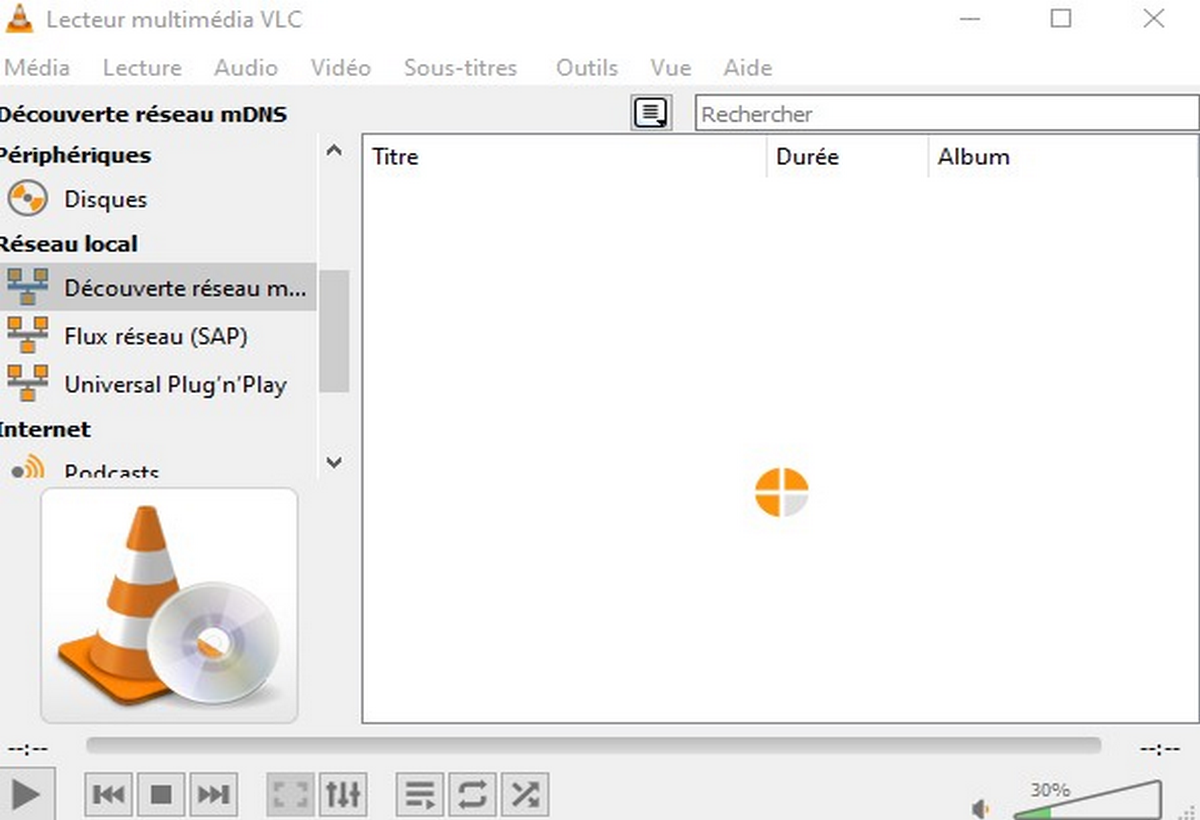
Network Streams & NAS
Connect to SMB/FTP/UPnP servers or open m3u/HLS links directly on the TV Box.
 More information
How to install & use VLC on your Android TV Box
- Install from Play Store — Open Google Play on your TV box or use the Play Store link below. Alternatively sideload VLC’s APK (use official sources).
- Enable Hardware Acceleration — Settings → Video → Hardware acceleration to improve playback on weaker boxes.
- Set Default Audio & Subtitle Tracks — While playing, choose Audio/Subtitles to switch tracks or load external SRT files.
- Stream from NAS — Media → Open MRL → smb://your-server/path or use the Local Network option to discover UPnP shares.
- Remote control tips — Use Android TV remote or pair a Bluetooth mouse/keyboard for easier navigation when configuring advanced settings.
- For 4K/HDR playback, ensure your TV box supports the codec (HEVC/H.265) and enable hardware acceleration.
- If audio is out-of-sync, use the audio delay slider to correct it on the fly.
- Use playlist (.m3u) support to manage live IPTV streams inside VLC.
- Keep subtitles in UTF-8 encoding to avoid character problems with Arabic or special characters.
Troubleshooting & common issues
- Choppy playback: Try disabling software decoding or enable hardware acceleration depending on the SoC.
- No sound: Check audio output settings and try switching between passthrough and stereo modes.
- Subtitle not showing: Rename the subtitle file to match the video filename or load manually via the subtitle menu.

Note: Always download VLC from official stores or the Videolan website. Sideloading from unknown sources can be risky.
Disclaimer: This article is for educational purposes only. VLC Media Player supports various network protocols for personal use, such as streaming from your own NAS or media server. We do not promote or provide any copyrighted or illegal IPTV sources.