
OfficeSuite: The Practical, Complete Guide — Install, Use & Master It
By ProdroidTech Editorial • Updated: • Est. read: 22–30 minOfficeSuite packs word processing, spreadsheet, presentation, and PDF tools into a single polished package for mobile and desktop. This guide focuses on practical workflows, clear configuration steps, and performance-minded tips that make OfficeSuite a dependable tool for students, freelancers, and mobile-first professionals.
 Platforms
Android • iOS • Windows • macOS
Free tier
Yes — Premium upgrades available
Use case
Platforms
Android • iOS • Windows • macOS
Free tier
Yes — Premium upgrades available
Use case
Editing documents on the go, converting PDFs, and quick spreadsheet reports without heavy desktop overhead.
What is OfficeSuite? A plain-language overview
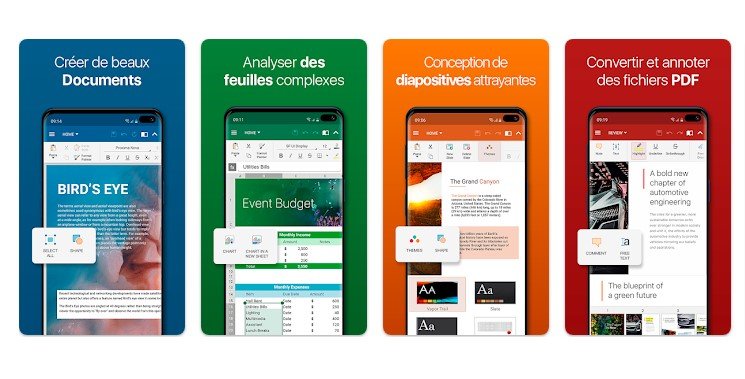
OfficeSuite is a productivity bundle developed to deliver familiar desktop-like capabilities on mobile devices while maintaining cross-platform consistency. It groups Writer (word processing), Sheets (spreadsheets), Slides (presentations) and an integrated PDF module that includes conversion, annotation and compression tools. The goal is practical — provide sufficient breadth for most office tasks while optimizing for responsiveness.
OfficeSuite appeals to a wide audience: students who draft essays on tablets, salespeople who compile reports from their phones, and small teams who need an inexpensive way to edit and share files compatible with Microsoft Office formats. It’s not an enterprise-only product; instead it’s a pragmatic tool for everyday productivity.
Below we dive deep: installation and setup, daily workflows, advanced tricks, performance tuning, a candid analysis of strengths and trade-offs, and hands-on troubleshooting.
Key features you’ll actually use
- Multi-editor package — Word, Spreadsheet, Presentation, and PDF inside one app for easy context switching.
- MS Office compatibility — strong rendering for DOCX/XLSX/PPTX, minimizing layout surprises when sharing with colleagues.
- PDF tools — convert PDFs to editable formats, annotate, sign, and compress for sharing by email.
- Cloud connectors — integrate with OneDrive, Google Drive, Dropbox, Box and other storage providers.
- Templates & quick actions — invoices, resumes, budgets and templates to speed repetitive work.
- Optimized mobile UX — large touch targets, streamlined ribbons, and context-aware toolbars.
These features combine to deliver a single cross-device workflow: start a doc on your phone, polish it on tablet, finish on desktop — all while keeping the formatting intact.
Install & setup — step-by-step (Android, iOS, Windows, macOS)
Android
Open Google Play, search for “OfficeSuite” (MobiSystems) and tap Install. When you first open the app, accept the permissions required for file access. For better syncing, sign-in with a cloud account (Google, OneDrive, etc.). In Settings → Saving you can set the default save location (local or cloud) and toggle auto-save.
iOS
Visit the App Store, install the app, and grant access to Photos if you plan to insert images from your camera roll. On iPad, use slide-over or split-view to work with two apps simultaneously.
Windows / macOS
Download the desktop installer from the official OfficeSuite site or an official store. During install, choose components you need — many users only require the primary editors and the PDF module. Optionally enable integration with File Explorer (Windows) so you can open files directly from the RT-click menu.
Configuration choices
- Enable cloud sync in Settings for automatic backup and cross-device continuity.
- On mobile, disable high-res image previews if storage is tight.
- Install the same fonts on desktop as used in important documents to avoid font substitution issues.
How to use OfficeSuite — Everyday workflows
Writing a report (fast)
Start from the “Report” template, set document styles (Heading 1, Heading 2) at the top, add your sections, and insert images and tables where necessary. Use the built-in spelling and grammar features, toggle Track Changes if collaborating, and export a PDF for distribution to keep layout intact.
Spreadsheet basics
Design sheets with clear headers and proper data types. Use SUMIFS, VLOOKUP/INDEX-MATCH to consolidate data and create charts for quick visualization. When sharing, protect sheets with a password if they contain sensitive calculations.
Preparing a presentation
Use Master slides to set consistent branding, limit bullet points to 3–5 per slide, and place long explanations in speaker notes. Export the final deck to PPTX for corporate compatibility or to PDF for universal viewing.
PDF editing & signing
Open the PDF, annotate with highlights and freehand notes, add a digital signature using the app’s signing tool, or convert to Word for heavy edits. When converting scanned PDFs, run OCR and manually verify text accuracy.
Advanced tips & power-user techniques
Speed up repetitive tasks with templates and named ranges in Sheets. For multi-page reports, create a Table of Contents using heading styles. Use data validation to avoid bad inputs in spreadsheets. If you regularly produce branded docs, define a document theme and save it as a template. For large datasets, avoid volatile formulas (e.g., INDIRECT) that slow recalculation.
For teams, centralize templates in a shared cloud folder so everyone uses the same branded assets. When you need version control, save snapshots locally or export dated PDFs so you can roll back changes without relying on cloud versioning alone.
Pros & Cons — honest short summary
Pros
- High compatibility with Microsoft Office formats.
- Integrated PDF features — no third-party apps required for many tasks.
- Lightweight and fast on mobile devices.
- One app covers documents, sheets, slides and PDFs.
Cons
- Some advanced functions (enterprise collaboration, very complex pivot functionality) are limited compared to heavyweight enterprise suites.
- Premium subscription required for certain PDF/OCR and security features.
- Occasional UI differences between mobile and desktop that require a short reorientation.
Analysis — performance, compatibility & value
| Category | Assessment |
|---|---|
| Compatibility | Very good with DOCX/XLSX/PPTX—layout fidelity is strong for most standard documents. Complex macros or proprietary add-ins may not carry over fully. |
| Performance | Fast on mid-range mobiles; desktop apps are responsive and conservative with memory usage compared to large office suites. |
| Feature set | Comprehensive for most users: editing, charts, templates, PDF conversion. Some advanced BI-style analysis tools absent. |
| Mobile experience | Designed for touch — toolbars adapt to small screens and provide fast access to common functions. |
| Security | Standard transport encryption and cloud provider-dependent storage security. For extremely sensitive data, combine OfficeSuite with client-side encryption before upload. |
| Value | Generous free tier; premium unlocks OCR, advanced PDF editing and extra storage—solid value for mobile-first users. |
Troubleshooting — common problems & fixes
App crashes or slowdowns
On mobile: clear the app cache (Settings → Apps → OfficeSuite → Storage → Clear cache), reboot, and update the app. If large files are slow, consider splitting them or using a desktop for heavy edits.
Formatting differences with colleagues
Embed fonts when exporting to PDF. For shared DOCX files, ask collaborators to use the same core fonts or export a PDF for final distribution to avoid font substitution.
OCR or conversion inaccuracies
Scan at 300 DPI or higher, use black-on-white contrast, and correct OCR output manually. For highly sensitive OCR tasks, dedicated OCR software can yield better results.
Frequently Asked Questions (FAQ)
Is OfficeSuite free? Yes. OfficeSuite offers a functional free tier suitable for most light users. Premium subscriptions unlock advanced PDF tools, additional cloud storage, ad-free usage and some automation features. Can OfficeSuite run large spreadsheets? Yes for moderate datasets. Very large, computationally heavy spreadsheets (tens of thousands of rows with many volatile formulas) perform better on a desktop application with more memory. Does OfficeSuite support macros? Basic macro compatibility exists, but complex or proprietary macros developed for Microsoft Office may not run identically. Test critical macro workflows after migration. Can I sign PDFs within the app? Yes — OfficeSuite includes annotation and signing tools that support adding signatures to documents.Conclusion — Is OfficeSuite right for you?
OfficeSuite is a carefully balanced productivity suite built for users who value compatibility and mobility. It excels when you need to edit or produce documents across phones, tablets and desktops without losing formatting fidelity. While it may not replace specialized enterprise systems for very advanced analytics or heavy real-time co-editing, it shines as a practical, dependable, and affordable option for most professionals, students and small teams.
If your daily workflow is heavily mobile, requires PDF conversion and editing, or demands cost-effective cross-platform editing, OfficeSuite should be high on your shortlist. Try the free tier first; for frequent PDF/OCR or team features, consider premium plans.
Download OfficeSuite
 Download Now
Play Store
Download Now
Play Store
Available for Android, iOS, Windows & macOS. Premium plans for advanced features.