
Polaris Office – Master & Use Effectively
Polaris Office has grown from a simple mobile document viewer into a cross-platform productivity suite capable of competing with mainstream office applications. This guide provides a fully practical walkthrough — from installation and setup, to creating documents, syncing cloud data, exporting PDFs, optimizing performance, and analyzing strengths and weaknesses.
What is Polaris Office?
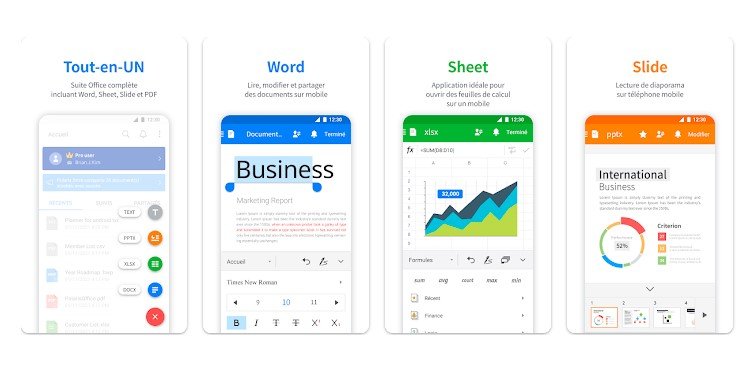
Polaris Office is a cloud-connected office suite designed for Android, iOS, macOS, and Windows. It is known for its lightweight architecture, fast document rendering, and strong compatibility with Microsoft Office formats. What sets Polaris apart is its focus on **mobile-first editing**, meaning the tools are optimized for smaller screens without reducing functionality.
It includes four major editors, each serving a distinct workflow:
- Word Processor: Create detailed documents with templates, formatting, and cloud autosave.
- Sheet Editor: Build spreadsheets, formulas, charts, and pivot-like views.
- Slide Creator: Make presentations with animations, layers, transitions, and themes.
- PDF Reader/Editor: Annotate PDFs, fill forms, sign documents, or export to different formats.
The suite integrates tightly with Polaris Cloud but supports Google Drive, Dropbox, OneDrive, and local device storage.
Main Features & Capabilities
1. Cloud-centric document workflow
Polaris Office prioritizes real-time syncing across devices. Documents saved in Polaris Cloud remain accessible from any platform. Autosave ensures changes are preserved even if your device disconnects from the internet.
2. True MS Office compatibility
Polaris Office supports DOCX, XLSX, PPTX, and PDF natively. During testing, layout preservation remained consistent when exchanging documents between Microsoft Office and Polaris Office, making it suitable for professional collaboration.
3. Mobile-optimized editing tools
Unlike heavier desktop suites, Polaris provides a minimalist yet powerful interface optimized for phones and tablets. Toolbars adapt dynamically depending on what you’re editing.
4. Rich template library
Users can create resumes, invoices, research reports, business presentations, portfolio slides, and budget sheets quickly using built-in templates.
5. PDF tools
You can annotate, highlight, fill forms, compress PDFs, or convert PDF to DOCX or text. A major strength of Polaris is that PDF viewing remains smooth even on low-end devices.
How to Install Polaris Office (All Platforms)
Android Installation
Open the Google Play Store, search for **Polaris Office**, and install it. On first launch, grant access permissions for file reading/writing. If you want automatic cloud syncing, sign in with a Polaris, Google, or Apple account.
iOS/iPadOS Installation
Install Polaris Office from the App Store. You can enable multitasking features on iPad—split view and slide-over enhance your productivity by allowing side-by-side editing.
Windows & macOS Installation
Download the installer from the official Polaris Office website. Choose the components you need—word, sheet, slide, or PDF. Once installed, link your cloud account to sync documents across devices.
Initial Setup
After installation, configure:
- Default save location (cloud or local)
- Autosave interval
- Theme (light or dark)
- Document font defaults
- Storage permissions
How to Use Polaris Office Effectively
1. Creating a document
Launch Polaris Office → choose “New Document” → select template or blank file. The formatting toolbar appears dynamically based on your selection: paragraphs, styles, images, shapes, tables, and comments.
2. Spreadsheet editing
Use Sheets to calculate budgets, manage data, or create business reports. Formula autocomplete helps reduce typing errors, and charts are visually clean and touch-friendly.
3. Presentation building
Slides offers transitions, animations, image layers, and modern themes. Export your final slides to PDF or PPTX for wider compatibility.
4. PDF tasks
You can annotate, insert notes, highlight text, draw shapes, or compress PDF documents. Polaris supports high-resolution rendering which keeps documents sharp.
5. Cloud syncing
Simply tap “Save to Cloud” and choose your provider. Syncing is fast, and collaborative editing works well for small teams.
Technical Performance Analysis
| Category | Rating | Notes |
|---|---|---|
| Speed | 8.9/10 | Very fast on mobile, moderate on older PCs. |
| Compatibility | 9.4/10 | Handles DOCX/XLSX/PPTX exceptionally well. |
| PDF Tools | 8.5/10 | Smooth rendering, strong annotations. |
| Cloud Sync | 9.2/10 | Stable syncing and fast autosave. |
| Mobile UX | 9.0/10 | Optimized toolbars and clean layout. |
Pros & Cons
✔ Pros
- Strong cloud syncing
- Excellent mobile UI
- Lightweight and fast
- Accurate compatibility with Microsoft formats
- Free plan covers essential features
- Smooth PDF handling
✘ Cons
- Ads in the free version
- Some advanced features require premium
- Occasional sync delays on very large files
Frequently Asked Questions
