

Is your TV Box stuck at the logo screen and won’t move past it ?
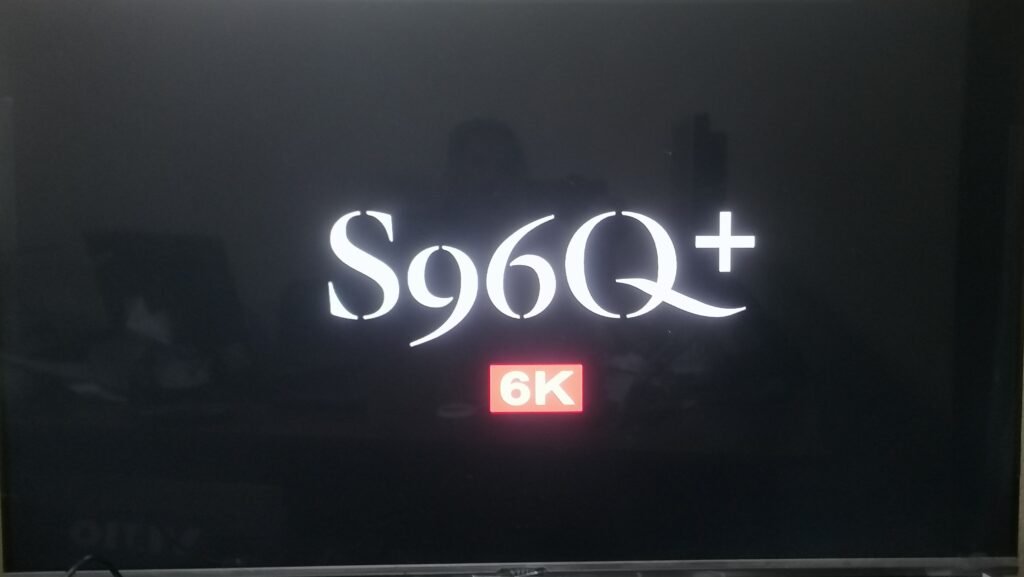
This is one of the most common malfunctions in Android TV Boxes, often caused by system corruption or a boot-up glitch. In this article, we provide practical steps to resolve the issue, along with the tools you’ll need to successfully restart your device.
Common Causes of a TV Box Stuck at the Logo
1- Failed System Update (Firmware Error)
2- External Application Causes System Crash
3- System File Corruption
4- Sudden Power Outage During Operation
5- Attempting to Root Incorrectly
Tools You’ll Need
1- USB Male-to-Male Cable (if your device supports connecting to a
computer)
2- Windows Computer
3- Flash Tool (such as Phoeni Suit, Amlogic USB Burning Tool, Rockchip Tool – depending on the processor type)
4- Official Firmware for your device (can be downloaded from the
company’s website or specialized forums)
5- Pin or Toothpick (to press the Reset button if it’s hidden)
Step 1: Try a factory reset from the device directly.
Unplug the device from the power supply.
Insert a pin into the AV or Reset port (depending on the device) and press and hold.
While holding, plug the device back into the power supply and wait 10 to 15 seconds.
If Recovery Mode appears, select:
Wipe Data / Factory Reset
Then Reboot System Now


Note: This method may not work if the system is completely corrupted, in which case we move on to flashing.
Step 2: Flashing the Firmware
General Steps:
Find your device’s exact model (written on the bottom of the device or on the box).
Download the firmware that matches your device.
Install the appropriate flashing software for your device’s processor:
Amlogic → Use the USB Burning Tool
Allwinner → Use PhoenixSuit
Rockchip → Use the RK Batch Tool
Connect the device to the computer while holding the Reset button (or the Boot button).
Start the flashing process and wait for it to complete.
After the process is complete, disconnect the device and reboot it.
Important Tips Before Flashing:
Make sure the firmware is 100% compatible with your device model.
Never disconnect the device during flashing.
Take a backup if possible (some programs offer this option).
Use a good quality USB cable to avoid disconnection.
Conclusion :
A TV Box stuck at the logo does not mean it is completely dead; it is often caused by hardware problems. System. Using the right tools and flashing steps, you can easily bring your device back to life. If the steps don’t work, the problem may be with the internal memory or processor, in which case it’s best to visit a specialized service center.

